
Keyboard Shortcuts
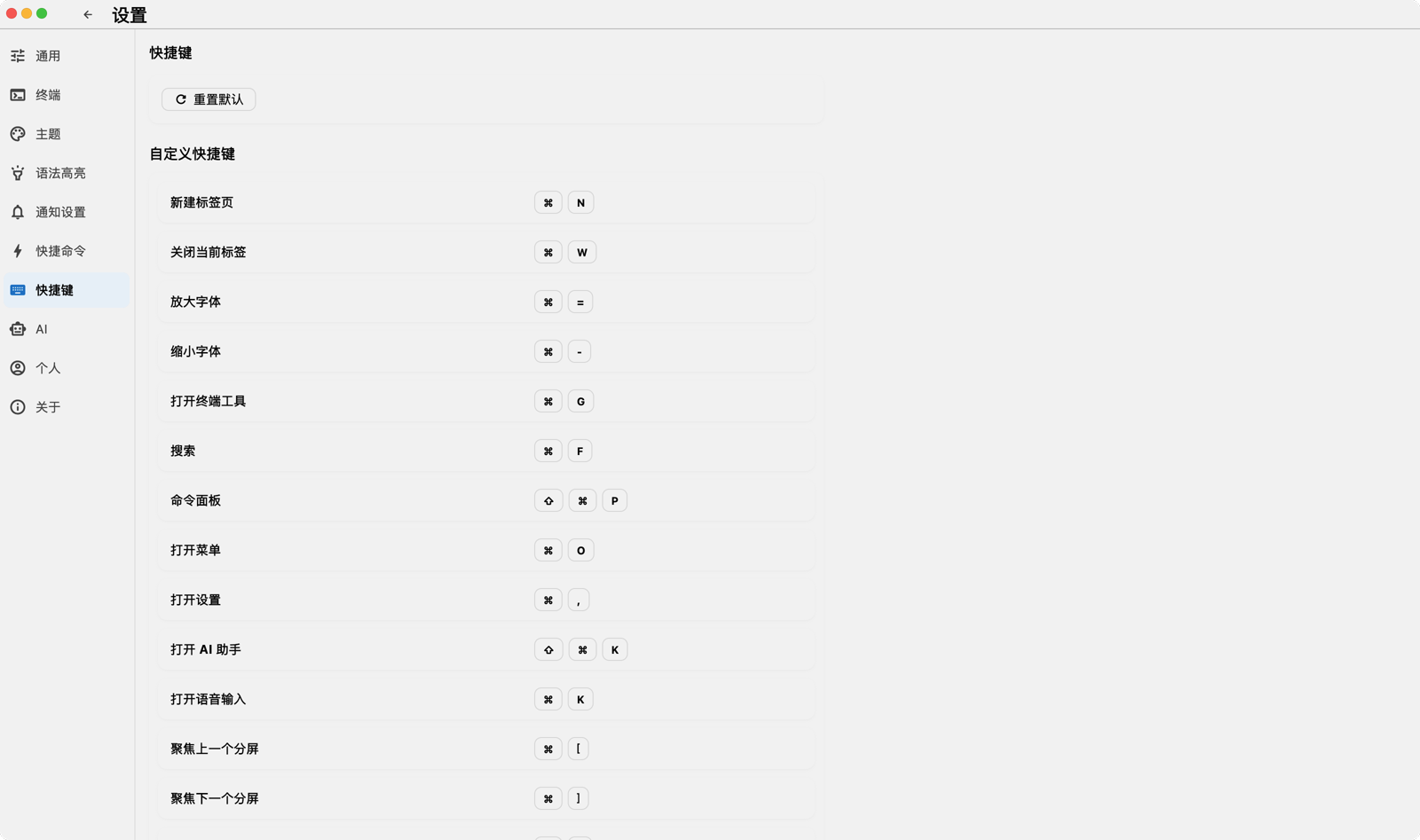
Shortcuts can be changed in Settings → Shortcuts. Select a shortcut field, press the new key combination, and use Reset to defaults if needed.
Application
| Action | Default |
|---|---|
| New tab | ⌘N |
| Close tab | ⌘W |
| Increase terminal font size | ⌘= |
| Decrease terminal font size | ⌘- |
| Open terminal tools | ⌘G |
| Search | ⌘F |
| Command Palette | ⇧⌘P |
| Open menu | ⌘O |
| Open Settings | ⌘, |
| Open AI | ⇧⌘K |
| Open voice input | ⌘K |
| Previous split | ⌘[ |
| Next split | ⌘] |
| Request terminal suggestion | ⌘J |
| Copy in terminal | ⌘C |
| Paste in terminal | ⌘V |
Fixed system shortcuts
| Action | Shortcut |
|---|---|
| Switch tab by number | ⌘1 … ⌘9 |
| Move cursor to line start | ⌘A |
| Move cursor to line end | ⌘E |
| Accept the selected suggestion | Tab |
| Return to the workspace | ⌘Esc |
Terminal and platform behavior
- The terminal status bar provides
^D,^L, and^Ubuttons. - The terminal context menu includes copy, paste, select all, find, monitoring, splits, and Ask AI.
- On Windows,
Ctrl+Ccopies when text is selected and is sent to the program when nothing is selected. - On Linux, use
Ctrl+Shift+Cto copy from the terminal. - Modifier-click a file path to open it. The modifier is configurable in Settings; it defaults to
⌘on macOS andCtrlelsewhere.