
Workspace
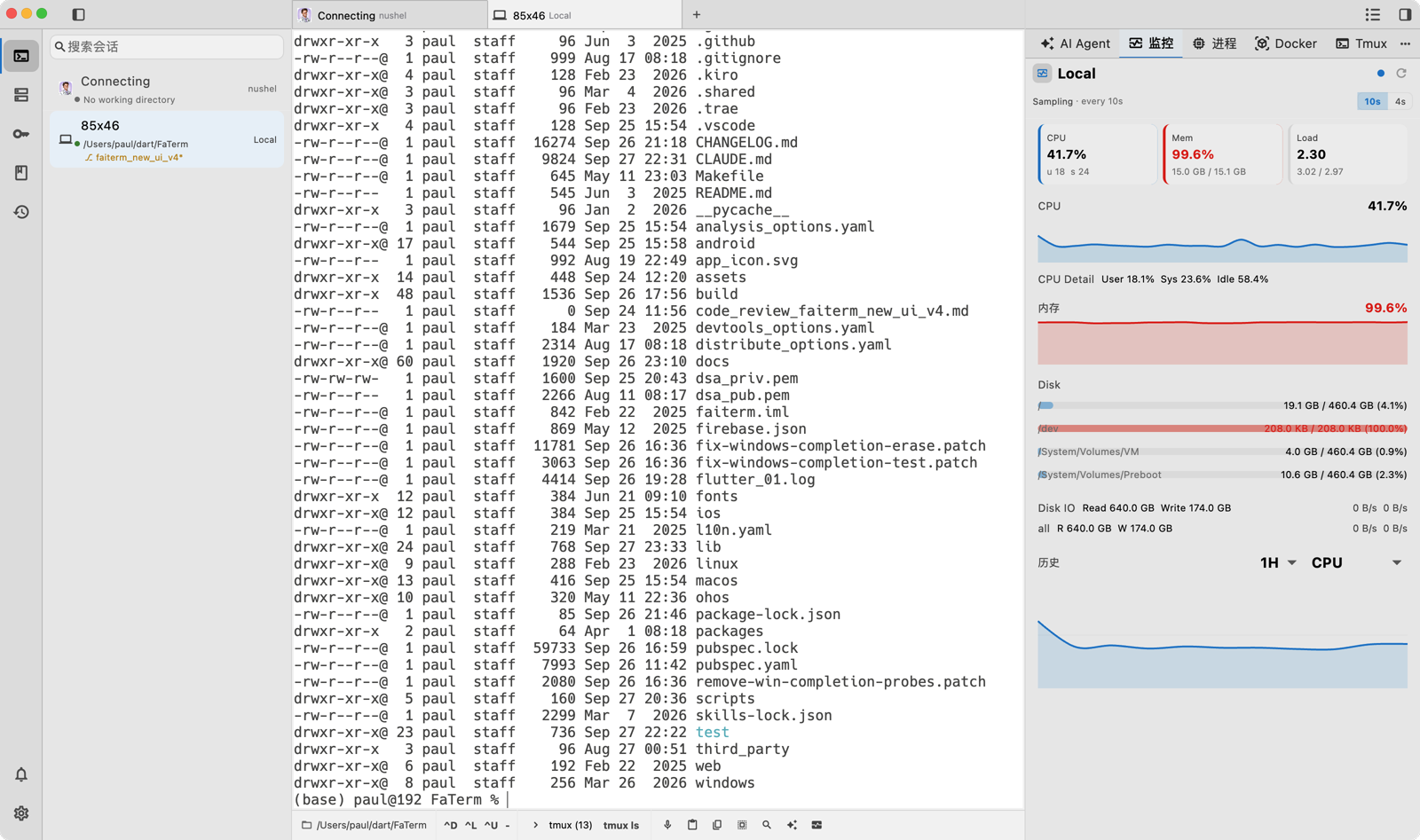
Four-panel layout
| Area | Description |
|---|---|
| ① Tool rail | Workspaces, hosts, secrets, notebooks, and history; notifications and Settings sit at the bottom. |
| ② List panel | Shows the selected rail item. Drag its edge to resize it or use the top-left button to collapse it. |
| ③ Workspace | Hosts tabs such as terminals, file managers, notebooks, and code editors. |
| ④ Tool collection | AI, monitoring, processes, Docker, tmux, services, scheduled tasks, and ports. If tabs do not fit, use the overflow menu. |
Workspaces and tabs
- A workspace represents one destination: your computer or a configured host.
- Each workspace can contain multiple tabs. Its sidebar row can show the current directory or Git branch.
- Use the tab context menu to split a terminal left/right or top/bottom.
- Tabs whose titles are truncated show the full title on hover.
On macOS, new tabs use ⌘N, close with ⌘W, and switch by position with ⌘1 through ⌘9. Use ⌘[ / ⌘] to move focus between splits and ⌘Esc to return to the workspace.
Command Palette
Press ⇧⌘P to search for application commands such as opening a tab, switching to a tool, opening Settings, or toggling the terminal status bar.
Startup and restoration
- Restore the previous workspace on startup is enabled by default.
- Terminal, notebook, editor, and file tabs are restored, including split layouts and the last tabs you were reading.
- When closing the app, you can choose whether to save the current state.
- Both options live in Settings → General.
Motion and layout
- Interface animations control menu and hover transitions. Disable them if you prefer instant changes.
- Panel widths are adjustable, and the side panel can be collapsed when you need more terminal space.