
AI Agent
AI Chat is the first tool in the right-side tool collection. On macOS, its default shortcut is ⇧⌘K.
Ask and Agent modes
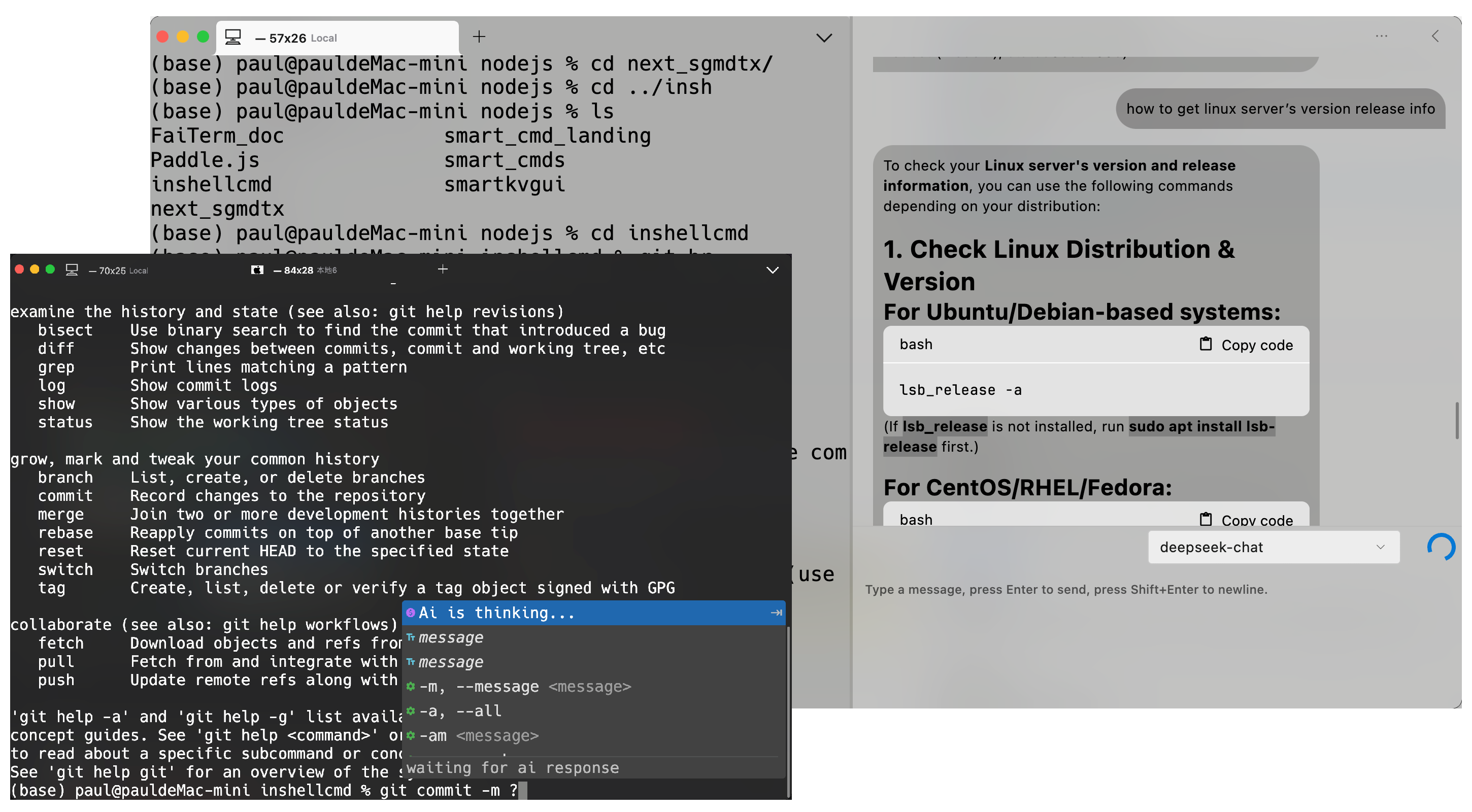
Ask answers questions without touching your environment. It is useful for research, code explanation, and command help.
Agent requires an already connected terminal. Once a terminal is selected, the AI can analyze your request and run tools against it. Command results appear as cards in the conversation and can be approved individually.
The context selector is also the mode switch: no terminal means Ask; a terminal means Agent.
Providers and models
Add or edit providers and models under Settings → AI, refresh the available models, and use Test connection. Supported options include OpenAI, Anthropic, Gemini, DeepSeek, Kimi, Qwen, GLM, MiniMax, Ollama, and OpenAI-compatible endpoints.
You can switch the current model from the model selector in the conversation.
Safety controls
| Approval mode | Behavior |
|---|---|
| Confirm every command | Ask before each command. |
| Smart approval | Automatically allow known read-only commands; confirm writes and unknown commands. |
| Fully automatic | Stop prompting for each command, while still blocking dangerous commands. |
Additional safeguards include a per-run command limit and the terminal command denylist. Matching commands always require confirmation, even in automatic mode.
Context
Context is explicit and removable:
- Attachments: text files and images
- Read-only tabs
- Notebook knowledge-base search
- The terminal selected for Agent mode
Conversation history
- Search by title, inspect details, export Markdown, or start a new conversation from an existing one.
- History stores redacted summaries rather than raw command output and reasoning.
- A title is generated after each completed run.
MCP tools
Local stdio MCP servers can be connected under Settings → AI → External Tools, allowing AI to use tools you provide.